How to Use Executor with Agent One Through Custom MCP

Last updated: 2026-06-19
2026 Update: Production Failure Modes and Real-Time Context
A 2026 verdict on multi-agent systems highlights that individual agents hit reliability and complexity limits fast. Multi-Agent Systems (MAS) overcomes these limits by dividing work among specialized agents, but they only perform as well as the context they have. To ensure success, experts recommend modernizing connectivity with Event-Driven Architecture (EDA) to supply real-time context.
Quick Summary Agent One can connect to remote Model Context Protocol (MCP) servers today. If your Executor setup exposes a remote MCP server URL, you can add that URL to an Agent One assistant from the Action Integrations section in the Agent Editor. This is the current setup path while deeper managed integration work is still being planned.
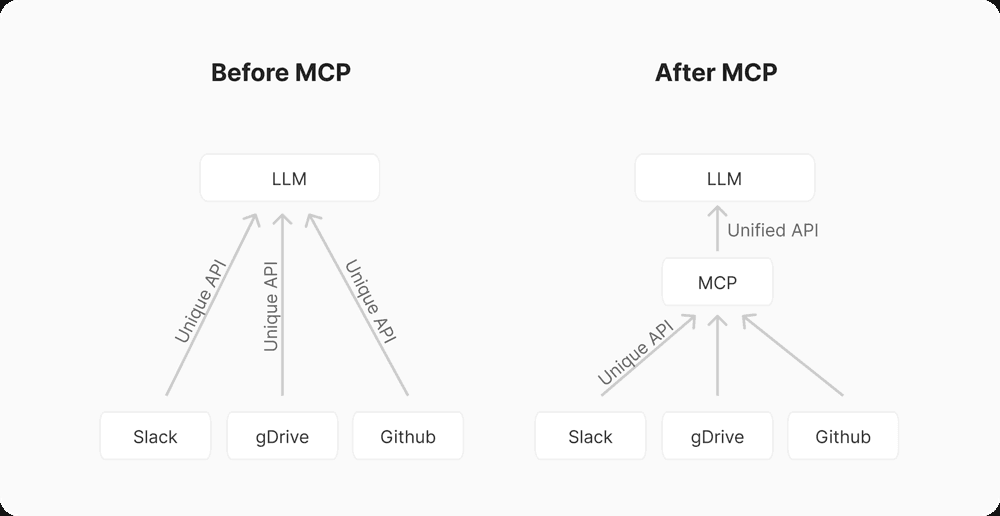
Executor is useful when your assistant needs to take actions outside the chat window: run workflow steps, call internal systems, inspect data, or coordinate tools that already live in your stack. Agent One provides the public assistant, custom domain, chat experience, knowledge base, lead capture, analytics, and MCP client. Executor provides the external tool layer.
The important point: you do not need to wait for a native integration to start testing this pattern. Use Agent One's Custom MCP support now, then move to a managed setup later if your workflow needs tighter onboarding, credential handling, or Agent One-managed infrastructure.
When This Setup Makes Sense
Use Executor through Custom MCP when your assistant needs a controlled way to do work in another system.
Good fits include:
- A support assistant that checks order status, subscription state, or ticket history
- A sales assistant that qualifies leads and sends structured records to a CRM workflow
- An internal assistant that runs approved operational scripts behind a remote MCP server
- A developer assistant that can read project-specific context or trigger safe automation steps
- A customer-facing agent that needs tools you already maintain outside Agent One
This setup is not a replacement for clear agent instructions, good knowledge base content, or careful testing. MCP gives the assistant tools. Your instructions and Executor configuration still define when those tools should be used and what the assistant should do with the results.
What You Need Before Connecting Executor
Before you add Executor to Agent One, prepare four things:
- A remote Executor MCP server URL
- A short, readable server name for the Agent One editor
- A clear list of the tools the server exposes
- Test prompts that should cause the assistant to use those tools
Agent One currently accepts remote MCP server URLs. A local localhost server will not work for a deployed assistant because Agent One needs to reach the server from its own runtime.
If you are starting from a local Executor setup, deploy the MCP server to an accessible HTTPS endpoint first. Keep access limited to the scopes and systems your assistant actually needs.
Executor's local mcp.json examples for tools like Claude Code or Cursor usually describe a command-based local server. Agent One needs a remote URL instead. Use the remote MCP endpoint exposed by your hosted Executor setup, not a local command entry.
How to Connect Executor in Agent One
- Open the Agent One dashboard.
- Select the assistant that should use Executor.
- Open Agent Editor.
- Go to the tools area and find Action Integrations.
- Click Add MCP Server.
- Enter a server name, such as
Executor OperationsorOrder Workflow Tools. - Paste the remote Executor MCP server URL.
- Save the server.
- Save or publish your agent changes, then test the assistant in chat.
If you already have an mcp.json file with name and url fields, you can load it from the Add MCP Server dialog instead of typing the fields manually.
Agent One will connect to the configured MCP server during chat and make the server's available tools available to the assistant. If Agent One cannot reach the server, the chat should still continue, but the Executor tools will not be available for that conversation.
A Practical Example
Imagine you run a small ecommerce support assistant. The assistant already answers product and policy questions from your Agent One knowledge base. You want it to also look up order status.
In this setup:
- Agent One hosts the assistant on your site.
- Your knowledge base explains refund policy, shipping windows, and product details.
- Executor exposes a remote MCP tool such as
lookup_order_status. - The assistant uses that tool only when a customer provides the required order information.
Your agent instructions might include:
1When a customer asks about an order, ask for the order number and email address if they have not already provided them.
2Use the order status tool only after both fields are available.
3Summarize the returned status clearly.
4If the tool returns no match, ask the customer to verify the information or offer a human follow-up path.
5Do not invent order status or delivery dates.
This keeps the assistant grounded. Executor does the external lookup, while Agent One handles the conversation around it.
Testing Checklist
Before using the setup with real users, test the full path.
- Confirm the Executor MCP server is reachable from a public HTTPS URL.
- Confirm the server exposes only the tools this assistant should use.
- Ask the assistant a question that should trigger each tool.
- Ask similar questions that should not trigger a tool.
- Check how the assistant behaves when the tool returns an error, empty result, or partial result.
- Review whether the assistant explains next steps clearly when the tool cannot complete the request.
- Verify that sensitive data is not exposed in tool descriptions, responses, or assistant messages.
The goal is not just "the tool runs." The goal is that the assistant uses the tool at the right time, handles failures plainly, and gives the user a useful next step.
How to Write Better Instructions for Executor Tools
Tool-connected assistants work best when instructions are explicit about boundaries.
Prefer instructions like:
1Use the account lookup tool only for questions about plan status, billing renewal date, or account limits.
2Do not use the account lookup tool for general product questions.
3If the account lookup tool fails, say that the account could not be checked right now and offer to collect the user's email for follow-up.
Avoid vague instructions like:
1Use Executor when helpful.The assistant needs enough context to decide when a tool call is appropriate. A small amount of specificity usually prevents more confusion than a long list of edge cases.
Current Limitations
The Custom MCP path is intentionally flexible, but it is not the same as a native managed integration.
Today, you should expect to manage:
- Hosting for the Executor MCP server
- Any credentials or permissions used by Executor
- Which tools are exposed to Agent One
- Server uptime and logs outside Agent One
- Tool naming and descriptions
- Testing for each assistant that uses the server
That tradeoff is useful for teams that want control now. It also means the setup is better suited to technical users or teams with someone comfortable operating a remote MCP server.
Custom MCP Today, Native Integration Later
Custom MCP is the right starting point because it lets teams connect Executor without waiting for a dedicated integration path.
Over time, a more native Agent One experience could reduce setup work: guided connection, clearer permission review, better status checks, and managed runtime options. The product goal for that kind of integration would be simple: users should think about the work their assistant can do, not the infrastructure behind it.
For now, if you already have an Executor MCP server, add it to Agent One as a remote MCP server and test it with one focused assistant. Keep the first workflow narrow, measure how often it succeeds, and expand only after the assistant handles normal failures well.
Related Reading
FAQ
What is the Model Context Protocol (MCP)?
The Model Context Protocol (MCP) is a standard that allows AI assistants to interact with external tools and data sources securely. It provides a structured way for agents to take actions outside their immediate chat environment.
How do I connect Executor to Agent One?
You can connect Executor to Agent One by adding its remote MCP server URL in the Action Integrations section of the Agent Editor. This exposes your Executor tools to the Agent One assistant during conversations.
Can I use a local Executor MCP server with Agent One?
No, Agent One requires a remote, publicly accessible HTTPS endpoint for the MCP server. Localhost URLs will not work because the deployed assistant needs to reach the server from the Agent One runtime.